크롬을 사용한 웹사이트에서 다음의 링크를 방문 합니다. 로그인 정보는 이미 알려 드린것을 사용하며 웹 판넬 및 안드로이드 패드, 모바일 폰에서도 같은 로그인 정보를 사용 합니다.
컴퓨터, 노트북, 포스용 컴퓨터에서 주문을 받을수 있습니다.
Devices with a screen size of 10.1 inches or larger—such as computers, iPads, or Android tablets—are recommended for logging in. While it is possible to use a mobile phone, smaller screens may lead to a less convenient experience.
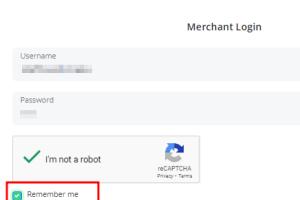
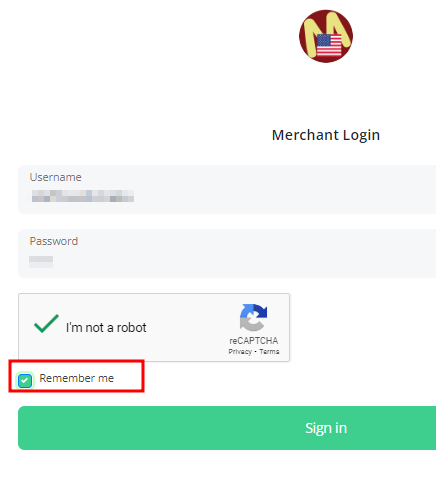
For restaurants in the U.S., please visit menuoneus.com/backoffice/merchant/, and for those in Canada, go to menuoneca.com/backoffice/merchant/. You should see the login screen there.
Use the login credentials that were previously provided. Be sure to check the “Remember me” box when logging in. If you did not receive your login information or have forgotten it, please contact us via KakaoTalk (ID: HL1AFG) or WhatsApp (ID: HL1AFG). We will do our best to respond as quickly as possible.
로그인에 사용가능한 기기는 10.1" 이상 크기의 화면을 가진, 컴퓨터, iPad, Android Pad 등이 좋습니다. 화면이 작으면 이용에 불편할 수 있습니다. 물론 모바일 폰으로도 사용은 가능 합니다.
미국의 경우 menuoneus.com/backoffice/merchant/, 캐나다의 경우 menuoneca.com/backoffice/merchant/ 을 방문 하면 위와 같은 화면이 나옵니다.
이미 보내드린 레스토랑 로그인 정보를 이용하여 로그인 합니다. 이때 Remember me 를 꼭 체크 해 주세요. 로그인 정보를 받지 못했거나 잊어 버렸을 때에는 카톡 아이디 HL1AFG, WhatsApp ID: HL1AFG 로 연락 바랍니다. 가능하면 빠른 시간내에 답변 드리겠습니다.
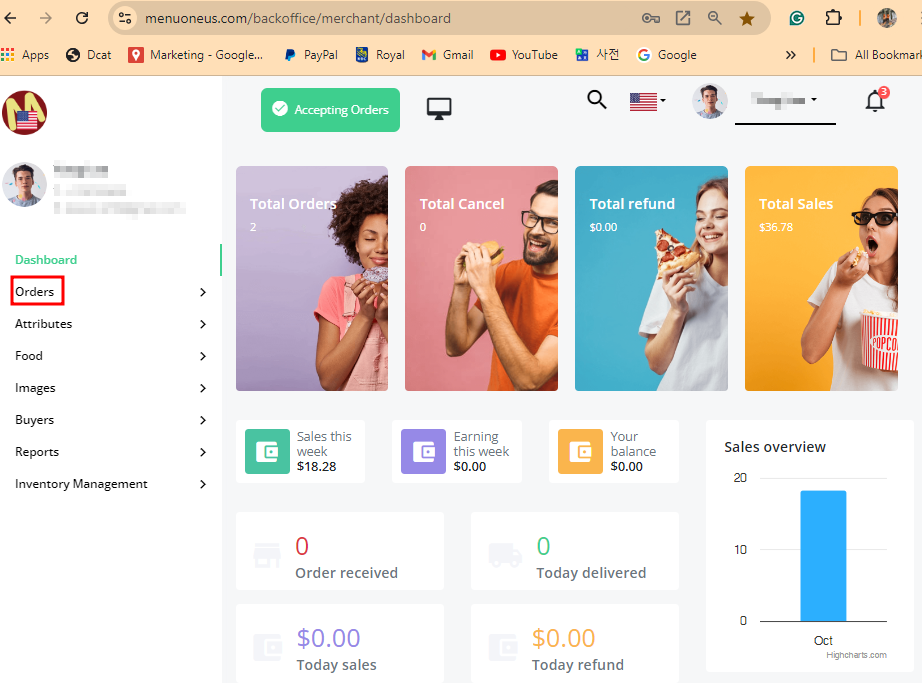
After logging in, you will see a screen similar to the one shown above. From the menu on the left, click on Orders.
로그인을 하면 위와 같은 화면이 보이는데, 왼쪽 메뉴중 Orders 를 클릭 합니다.
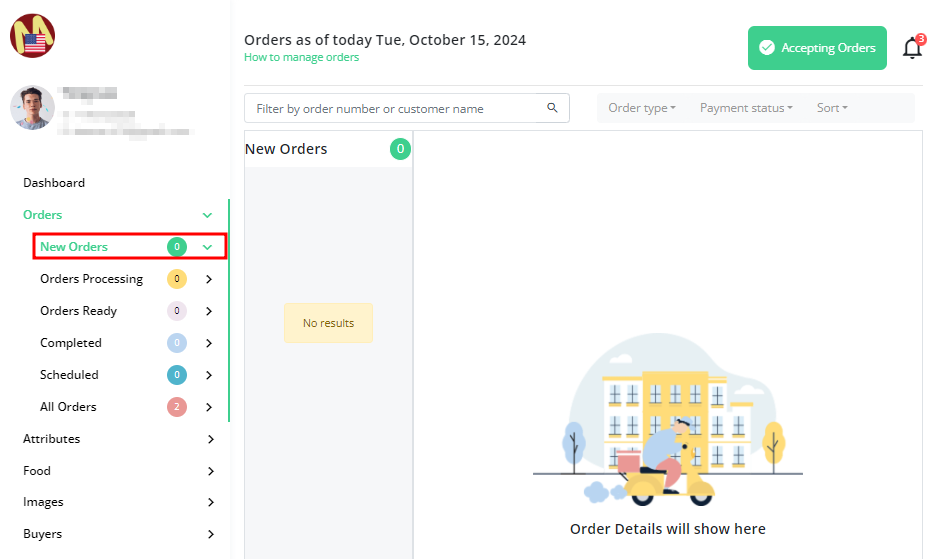
Under the Orders menu, click on New Orders. If there are any new orders, they will be displayed on the right side of the screen.
Order 메뉴중에 New Orders 를 클릭 하면 오른쪽에 새로운 주문이 있는 경우 내용이 보이게 됩니다.
 02-Holiday Setup (휴일 셑업)