아이패드, 안드로이드 패드, 어떤 기기에서나 온라인 주문을 받을 수 있습니다.
주문이 온것을 확인하고, 현재 주방 상황에 따라 Dlay time 을 고객에게 알려주고, 음식이 완료되면 고객에게 알려 Pickup 하게 하고, Pickup 후 해당 업무를 마무리 합니다.
You can receive online orders on any device, including iPads and Android tablets.
When an order comes in, you can check it, inform the customer of the estimated delay time based on your kitchen situation, and notify them when the food is ready for pickup. After the customer picks up the order, simply mark it as complete.
아래의 QR code 를 패드나 모바일폰으로 스캔 합니다.
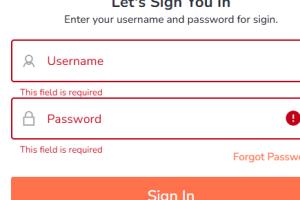
이미 알려드린 Username, Password 로로그인을 합니다.

Using the username and password already provided, go to owner.menuoneca.com and log in.

username, password 가 필요한분은 연락을 바랍니다.
If you need a username and password, please contact us.
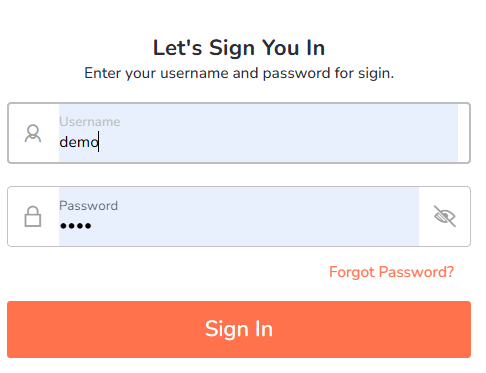
여기에서는 demo 정보로 로그인 합니다.
Here, log in using the demo credentials.
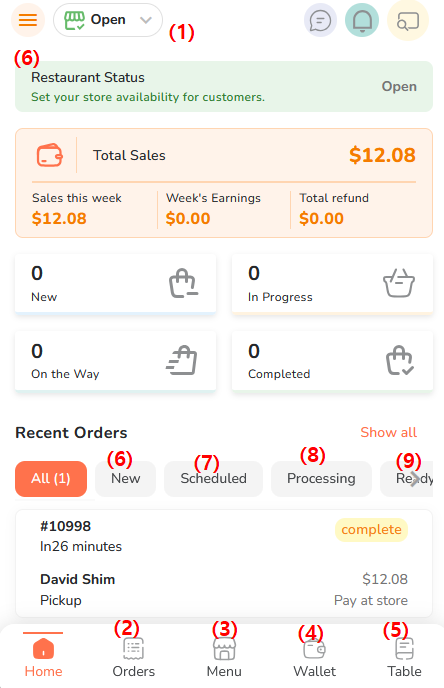
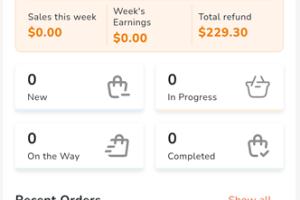
로그인 후에 보이는 화면 입니다.
This is the screen you’ll see after logging in
Here’s a simple English translation of your points:
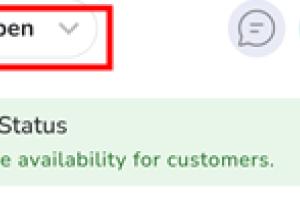
(1) Currently it shows Open, but if it becomes too busy and you cannot take more orders, you can click it to change to Closed. Once you try it, it will be clear.
(2) Orders: Keep this clicked on while the app is running to receive new orders.
(3) Menu: Used to edit your menu.
(4) Wallet: Available only for restaurants that applied and set up this feature.
(5) Table: Table-side ordering feature, available only for restaurants that applied.
Click here to see more app menus.
(6) New: Shows when there is a new order.
(7) Scheduled: Shows orders set for a specific date/time (not ASAP).
(8) Processing: Shows orders that have been accepted. Once food is ready, click here to move to the next step.
(9) Ready: Shows orders that are prepared and waiting for pickup or delivery.
(10) Completed: Shows finished orders. Swipe left to view this menu.
(1) 현재는 Open 으로 표시 되어 있지만 만약, 너무 고객이 밀려 주문 받기가 어려우면 이것을 클릭하면 Closed 로 표시 할 수 있습니다. 실시해 보면 이해 할 수 있습니다.
(2) Orders: 이것은 주문오는것을 확인하기 위해 앱이 켜있는 동안 클릭해 놓아야 신규 주문을 확인 할 수 있습니다.
(3) Menu: 이것은 메뉴의 수정을 할 수 있습니다.
(4) Wallet: 기능 사용 신청을 하고 셑업한 레스토랑만 사용이 가능 합니다.
(5) Table: 이것은 테이블 사이드 주문 기능으로, 신청한 레스토랑만 사용이 가능 합니다.
(6) 이것을 클릭하면 보다 다양한 앱의 메뉴를 확인 할 수 있습니다.
(6) New: 이것은 새로운 주문이 있는경우 표시 됩니다.
(7) Scheduled: 이것은 ASAP 가 아닌, 특정 시간 혹은 특정일자 및 시간을 지정하는 고객의 주문이 표시 됩니다.
(8) Processing: 이것은 주문을 Accept 한 고객이 표시 됩니다. 음식이 완료 되면 이 텝을 눌러 다음 단계를 클릭 해야 합니다.
(9) Redy: 이것은 음식준비가 완료되어 고객을 기다리거나 배송중인 주문이 표시 됩니다.
(10) Completed: 이것은 주문처리가 종료된 건 을 표시 합니다. 이 메뉴를 보기 위해서는 왼쪽으로 밀어야 보입니다.
화면 하단의 Orders 를 클릭 합니다.
Click on Orders at the bottom of the screen.
온라인 주문을 받기 위해서는 항상 New Orders 버튼을 클릭한 상태로 있어야 합니다.
To receive online orders, you must always keep the New Orders button activated.
주문 들어온것이 위와 같이 보이는데 이것을 클릭합니다.
When an order comes in, it will appear as shown above — click on it.
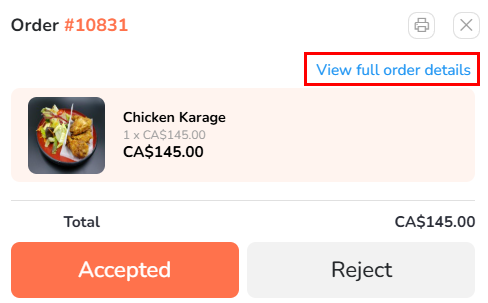
View full order details 를 클릭하여 주문상황을 확인 합니다.
Click View full order details to check the order status.
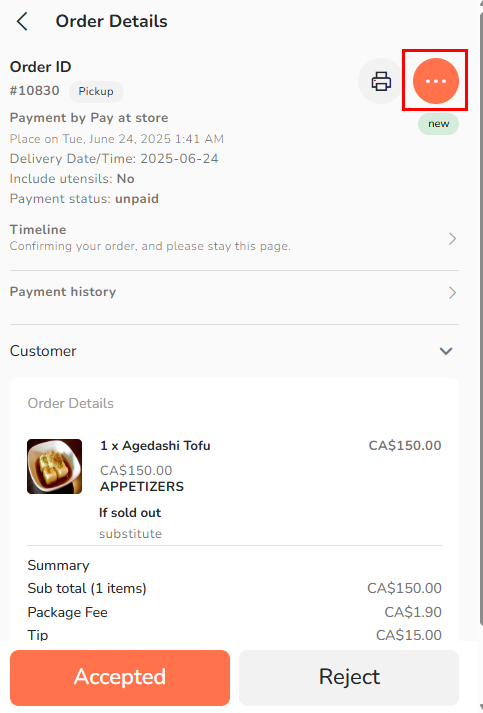
오른쪽 상당의 동그라미 안의 점 3개개 있는곳을 클릭 합니다.
Click the three-dot icon inside the circle on the right side.
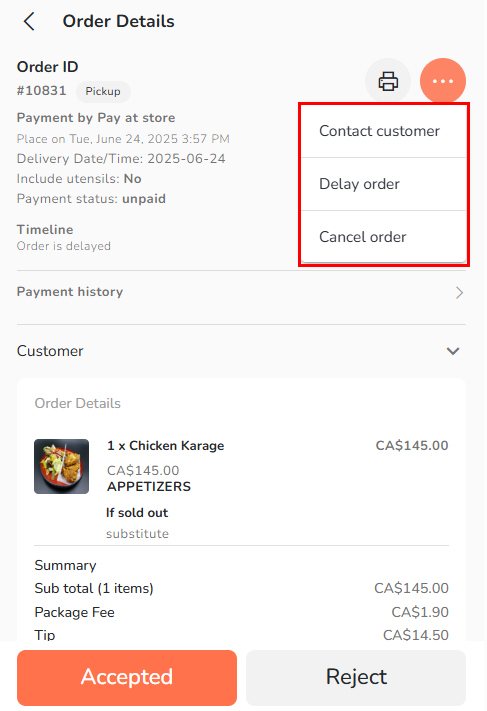
1) 고객의 주문요청에 그대로 제공 할 수 있는 경우에는 하단 왼쪽의 Accepted 버튼을 클릭 합니다.
2) 고객에게 연락을 하는것이 필요할때에는 우측 상단 네모 안에 보이는 Contact customer 버튼을 클릭하면 고객의 전화번호가 보이는데 이것을 이용하여 연락이 가능 합니다.
3) 주문 받은것이 시간이 걸린다고 판단 되면 Delay order 버튼을 클릭하여 원하는 시간을 선택한다. 이 시간은 현재시간으로부터 더 걸리는 시간 기준이고, 고객에게 알림으로 보내진다.
4) 주문을 Cancel order 하는 경우 해당 버튼을 클릭하여 Cancel 이유를 선택한다.
-
If you can fulfill the customer’s order as requested, click the Accepted button at the bottom left.
-
If you need to contact the customer, click the Contact customer button inside the square at the top right. The customer’s phone number will be displayed, allowing you to get in touch.
-
If you expect a delay in preparing the order, click the Delay order button and select the desired delay time. This time is added to the current time and will be notified to the customer.
-
To cancel the order, click the Cancel order button and choose a reason for the cancellation.
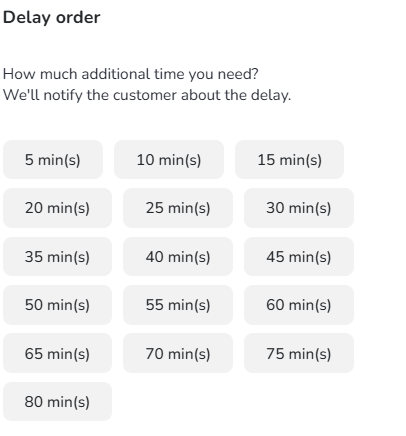
Delay time 을 선택합니다.
Select the delay time.
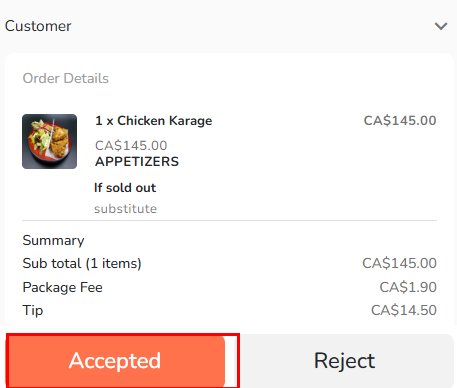
Accepted 버튼을 클릭해야 고객이 레스토랑에서 음식 준비를 하게 되는것을 알 수 있습니다.
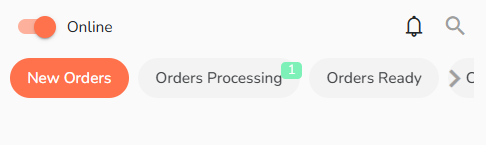
처음화면으로 돌아가 보면 Orders Processing 에 1자가 표시된것을 볼 수 있다. 음식준비중인 주문이 1건 있다는 것이다. 이때 Orders Processing 을 클릭하면 아래의 화면이 보입니다.
When you return to the main screen, you will see the number “1” displayed next to Orders Processing, indicating there is one order currently being prepared. Clicking on Orders Processing will bring up the screen shown below.
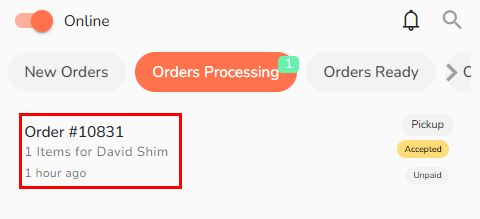
이때 Order 정보를 클릭 하면 다음 화면이 보인다.
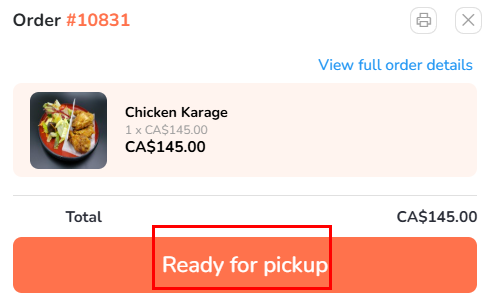
음식이 준비 된 후 Ready for pickup 이 되면 이것을 클릭 한다. 음식 준비 되었다는 알림이 고객에게 가게 됩니다.
Once the food is ready and the status changes to Ready for pickup, click it. This will notify the customer that their order is ready.
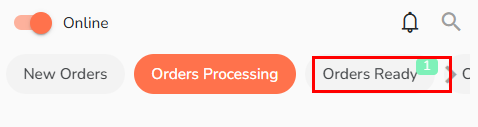
고객이 음식을 찾으러 오면 Orders Ready 버튼을 클릭하여 고객이 주문한것을 확인후 내어 준다.
When the customer arrives to pick up their order, click the Orders Ready button to verify and hand over the order.
 02-Android Pad or Phone 에 모바일 앱 아이콘 만들기
 04-영업중 일시적으로 사정이 생겨 Closed 로 표시하는 방법